
Refine Operations (Pro Feature) 🌟
Refine operations apply precise geometric transformations to your 3D model using real-world reference data. Unlike manual adjustments, Refine operations leverage actual measurements—such as GPS coordinates—to automatically align, rotate, and scale your model to match real-world geometry.
Note: Refine operations are available exclusively for Pro users.
What Are Refine Operations?
When photogrammetry reconstructs a 3D model, the result is geometrically accurate in shape but may not be correctly oriented, scaled, or positioned in real-world space. Refine operations solve this by anchoring your model to real-world data, producing a georeferenced and properly scaled result automatically.
Refine operations are ideal for:
- Drone surveys that require georeferenced output
- Architectural documentation tied to geographic coordinates
- Models that need to be accurately placed in real-world maps or GIS systems
- Any workflow where real-world scale and position matter
Accessing the Refine Tab
Navigate to the Refine tab in the Replica interface to access refine operations.

Available Operations
1. Drone Coordinates (Beta) 🧪
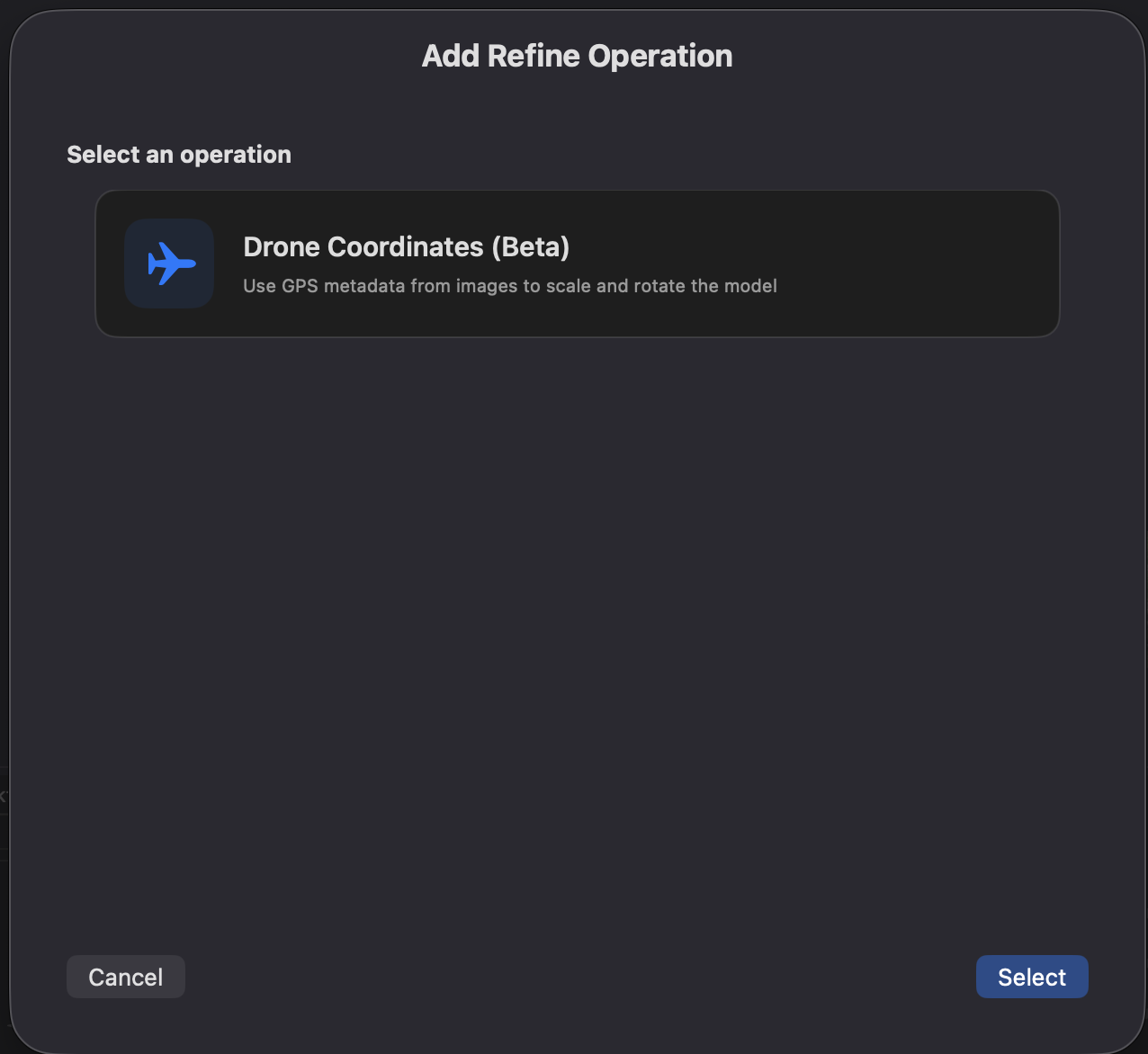
Automatically align, rotate, and scale your 3D model using GPS metadata embedded in your dataset images. This operation reads the geographic coordinates recorded by the drone at the time of each shot and uses them as reference to correctly transform the model in real-world space.
Beta Notice: Drone Coordinates is currently in beta. Results may vary depending on GPS accuracy and image dataset quality. We recommend verifying the output before using it in critical workflows.
Requirements:
- Images in the dataset must contain GPS metadata (EXIF geolocation data)
- GPS data is typically embedded automatically by drones and GPS-enabled cameras
How it works:
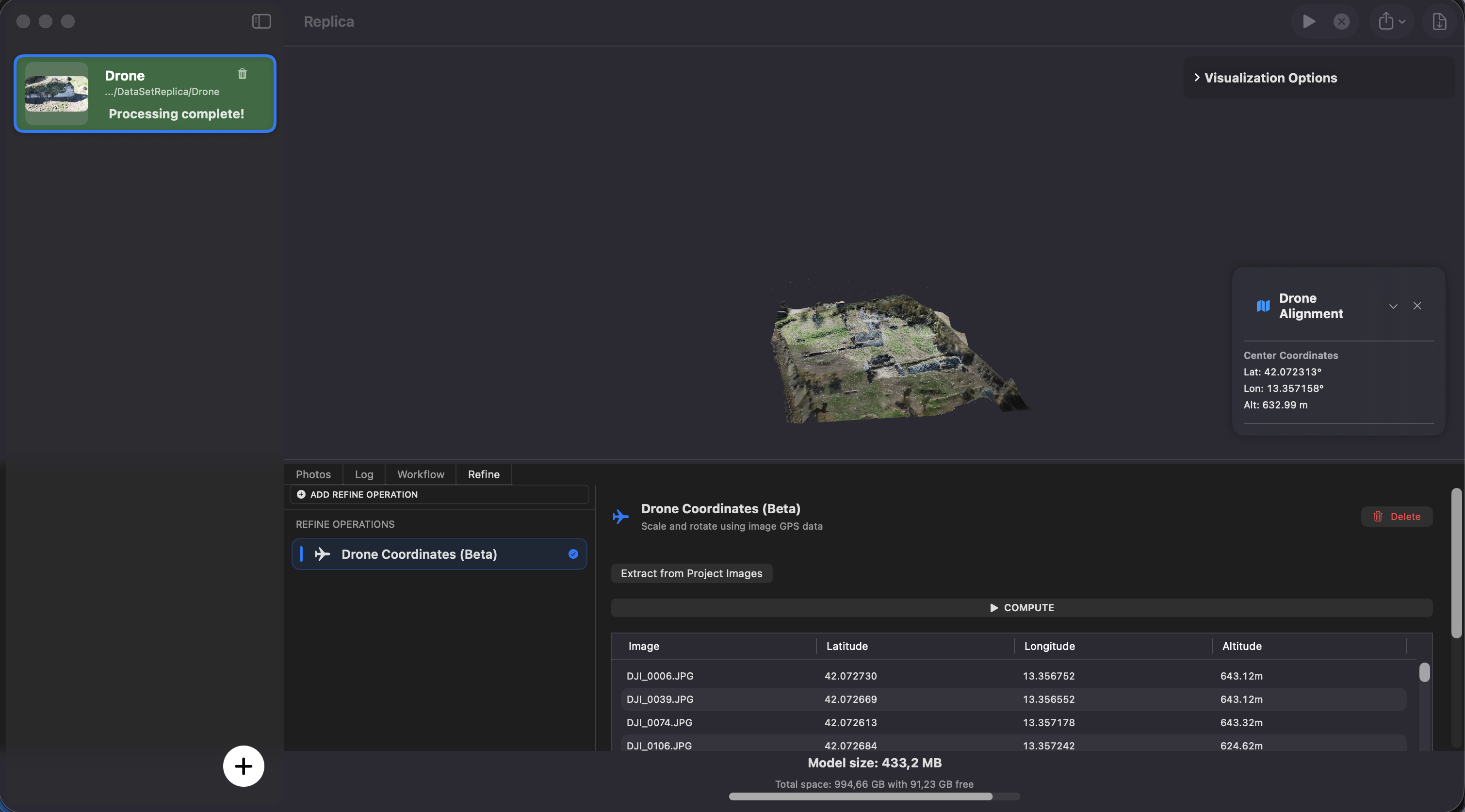
Step 1 — Extract GPS Data
Click the Extract from Project Images button.
Replica scans all images in your project, extracts the embedded GPS coordinates, and displays them in a table. Each row in the table corresponds to one image with its latitude, longitude, and altitude values.
Tip: Review the table to verify that GPS data was correctly read. If the table is empty or shows unexpected values.
Step 2 — Compute Transformation
Once you have reviewed the GPS data, click the Compute button.
Replica calculates the transformation needed to align the model with the GPS reference frame and applies:
- Translation — moves the model to the correct geographic position
- Rotation — orients the model to match the real-world heading
- Scale — adjusts the model size to match real-world distances derived from GPS positions
Step 3 — Review the Result
After the computation completes, a panel displays the geographic center of the model (latitude, longitude, and altitude). This confirms that the model has been successfully georeferenced.
Configuration options:
- None — the operation works automatically based on the GPS data extracted from images
Use cases:
- Drone surveys of terrain, buildings, or infrastructure
- Creating georeferenced models for GIS integration
- Architectural documentation with real-world positioning
- Volume calculations and measurements on correctly scaled models
Tip: For best results, capture images with a drone or camera that records accurate GPS coordinates. RTK (Real-Time Kinematic) drones provide centimeter-level accuracy, which yields the most precise transformations.
Best Practices
Ensuring Good GPS Data Quality
Use a GPS-enabled drone or camera:
- Consumer drones (DJI, Autel) automatically embed GPS in image EXIF data
- RTK drones provide higher accuracy for professional workflows
- Verify GPS logging is enabled before your flight
Plan your flight for good GPS coverage:
- Fly in open areas with clear sky visibility for better GPS signal
- Avoid flying near tall buildings or under canopies that block GPS signals
- Overlap your flight path sufficiently for good image coverage
Check your images before processing:
- Use a tool like ExifTool or a photo viewer to verify GPS metadata is present
- Ensure coordinates look plausible for your capture location
- Remove images with missing or clearly incorrect GPS data
Combining Refine with Workflows
You can use Drone Coordinates in combination with Workflows for a complete automated pipeline:
Example — Drone Survey Pipeline:
1. Run photogrammetry session
2. Apply Drone Coordinates (Refine tab) → georeferenced model
3. Apply Export Model (Workflow tab) → export as OBJ or GLB
Order matters: Apply Drone Coordinates before exporting so that the exported file includes the correct georeferencing transformations.
Troubleshooting
No GPS data found (empty table):
- Verify that your images contain GPS metadata using an EXIF viewer
- Check that GPS was enabled on your drone or camera during the flight
- Some image editing or conversion tools strip EXIF metadata — use original files
GPS data looks incorrect:
- Ensure the images are from the correct flight session
- Check for time zone or coordinate system inconsistencies
- Try removing outlier images with clearly wrong coordinates
Computation result seems inaccurate:
- The accuracy depends on the quality of the embedded GPS data
- Consumer drone GPS accuracy is typically 1–5 meters; RTK provides centimeter accuracy
- Verify the geographic center shown in the result panel matches the expected location
- Remember this is a beta feature — results may not be perfect in all scenarios
Scale seems off after computation:
- Ensure images were captured at consistent altitudes
- GPS-based scale estimation works best when images cover a large enough area
- For high-accuracy scale requirements, consider using Scale by Camera Distance from the Workflows tab as an alternative or complement
Next Steps
Now that you understand Refine operations:
- Getting Started - Learn the basics of creating photogrammetry projects
- Session Configuration - Master configuration options for optimal reconstruction
- Workflows (Pro) - Automate post-processing with scale, alignment, and export operations
Need Help?
Visit the Replica community forums for support and tips from other Pro users.
Happy georeferencing! 🌍