
Getting Started
Welcome to Replica! This guide will walk you through creating your first photogrammetry project from start to finish.
Prerequisites
Before you begin, ensure you have:
- macOS 12.0 (Monterey) or later
- Apple Silicon (M1, M2, M3) recommended for optimal performance
- A set of photos covering your subject from multiple angles
- At least 8GB RAM (16GB+ recommended for larger projects)
Quick Start Guide
Follow these steps to create your first 3D model:
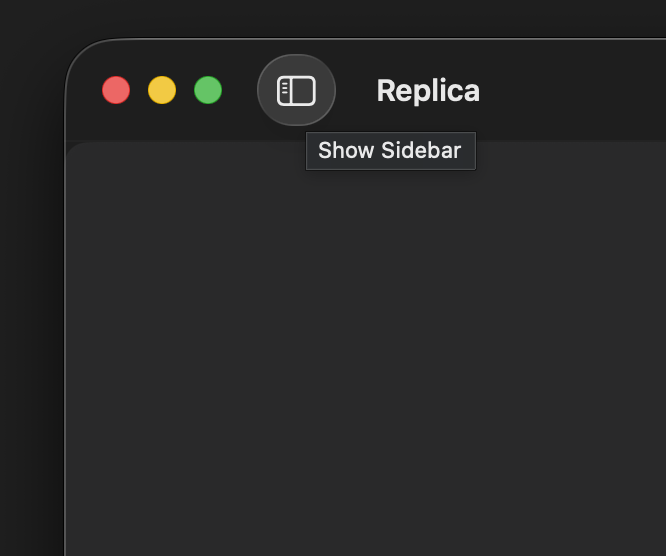
1. Launch Replica and Open the Project Panel
Open the Replica application and expand the project sidebar on the left.
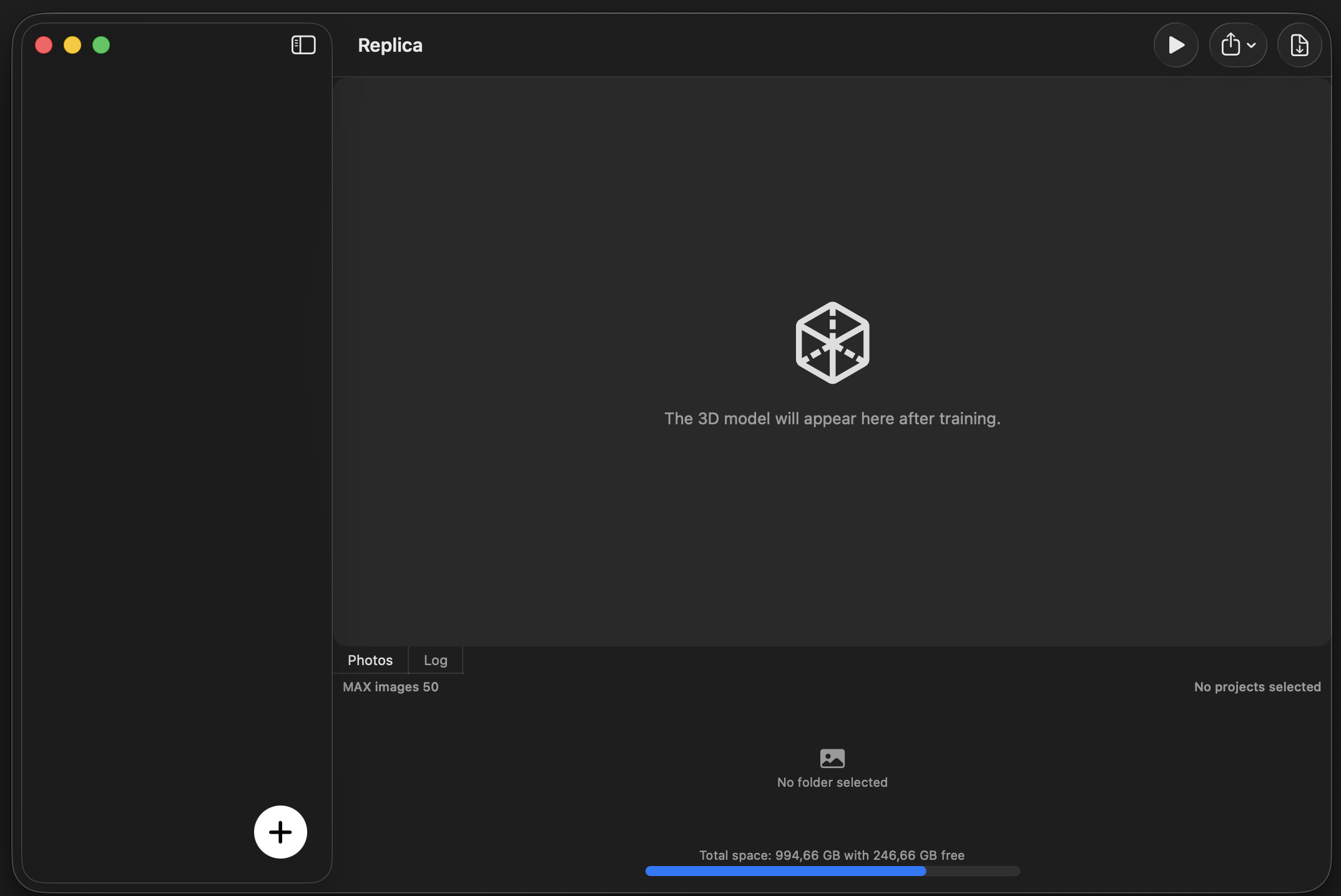
2. Create a New Project
Click the + button at the bottom of the sidebar to create a new project.
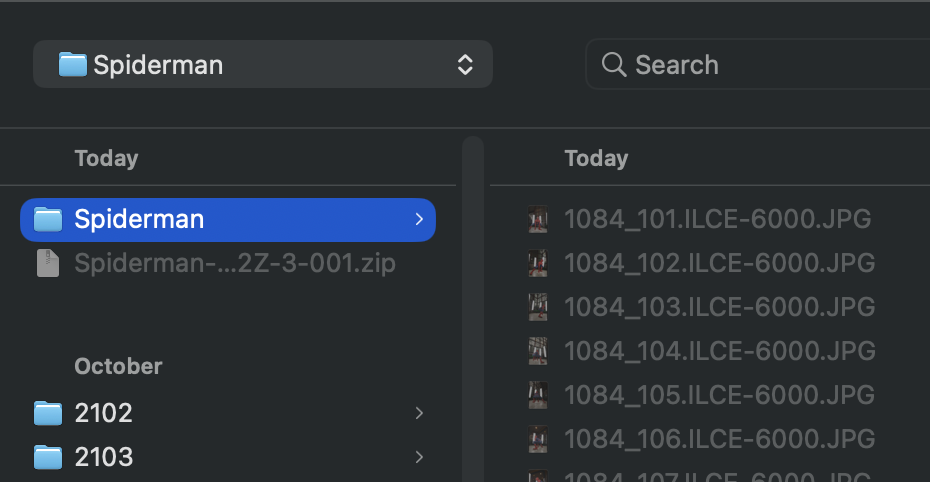
3. Select Your Photos
Choose a folder containing your photogrammetry images.
Important: In the free version, a maximum of 50 images will be processed. For larger datasets, consider upgrading to the full version.
Tips for best results:
- Use high-resolution images (minimum 1920×1080)
- Ensure 60-80% overlap between consecutive photos
- Maintain consistent lighting across all shots
- Avoid motion blur and out-of-focus images
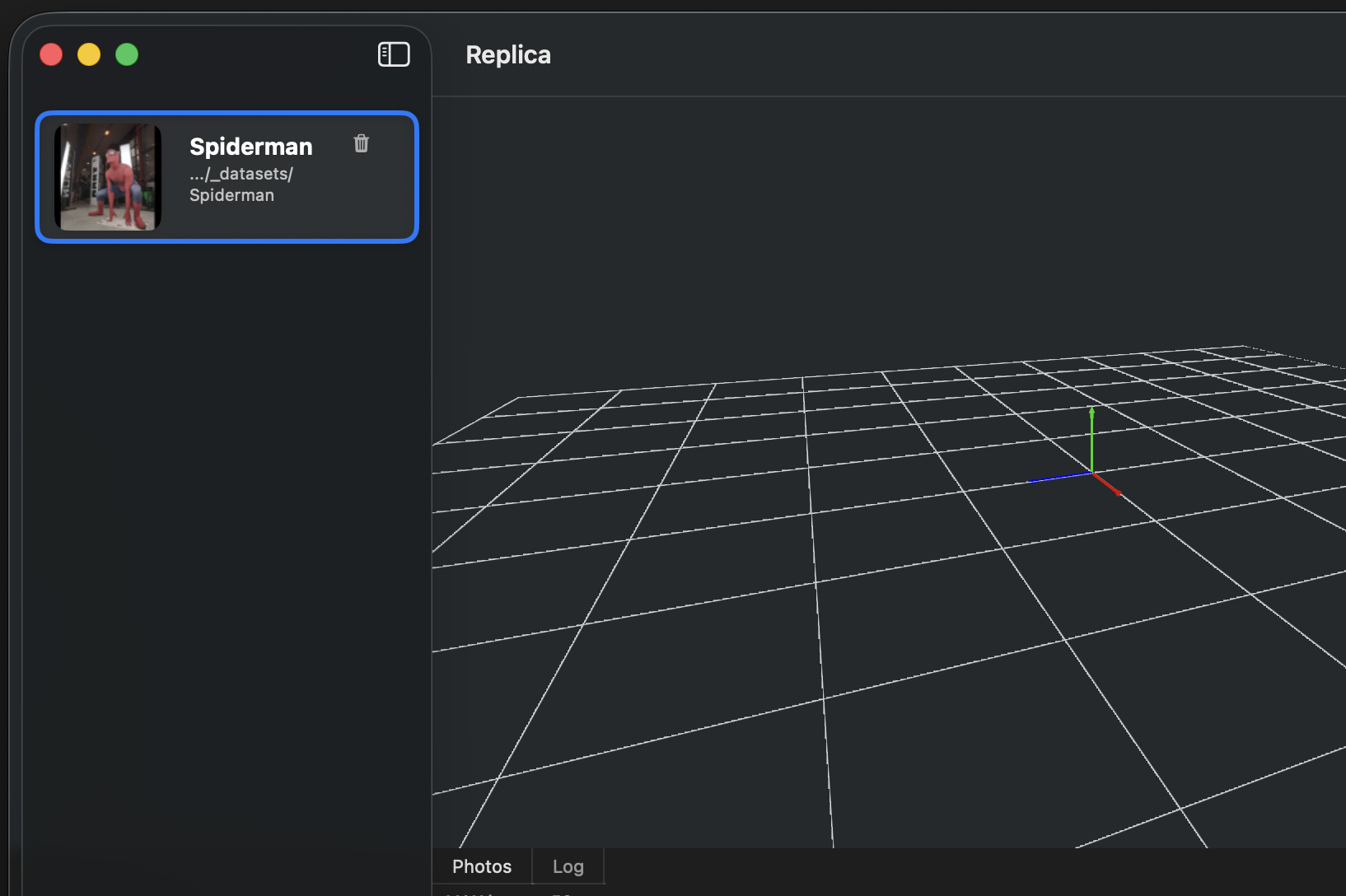
4. Select Your Project
Click on the newly created project in the sidebar to activate it.
5. Open Session Configuration
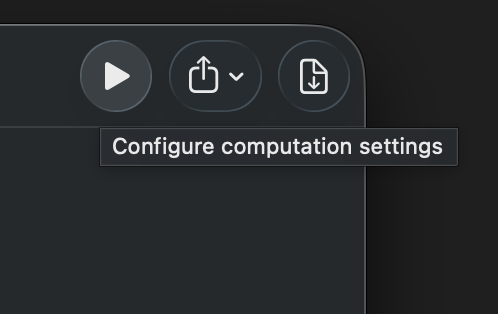
Click the Play button to open the session configuration panel.
6. Configure and Start Processing
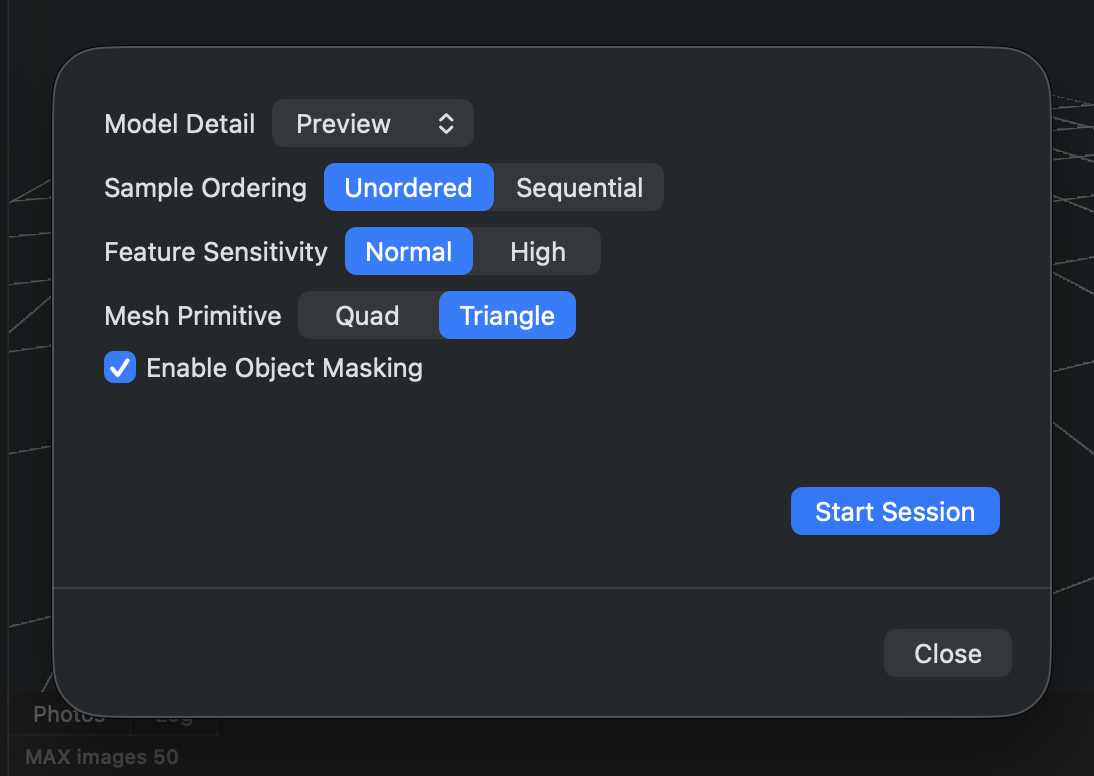
Adjust your session settings based on your needs, then click Start Session to begin processing.
For detailed information about configuration options, see the Session Configuration guide.
Processing time varies depending on:
- Number of images
- Selected quality settings
- Hardware capabilities
- Image resolution
Monitoring Progress:
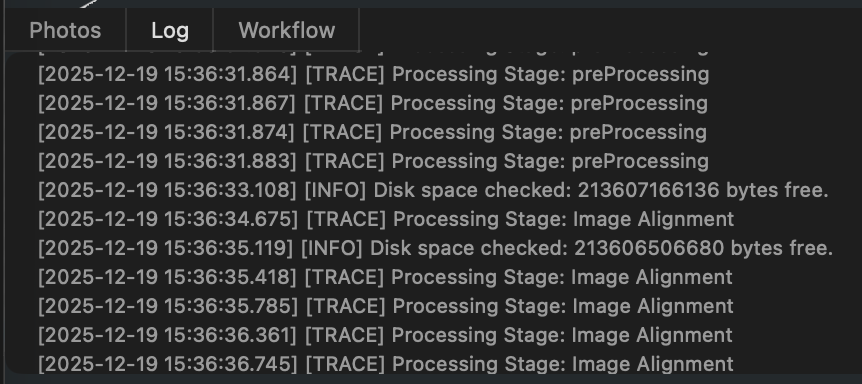
During processing, you can monitor the status and check for any issues in the Log tab. If you encounter problems, detailed logs are saved both in the application and as a text file in your project folder for troubleshooting.
7. View Your Results
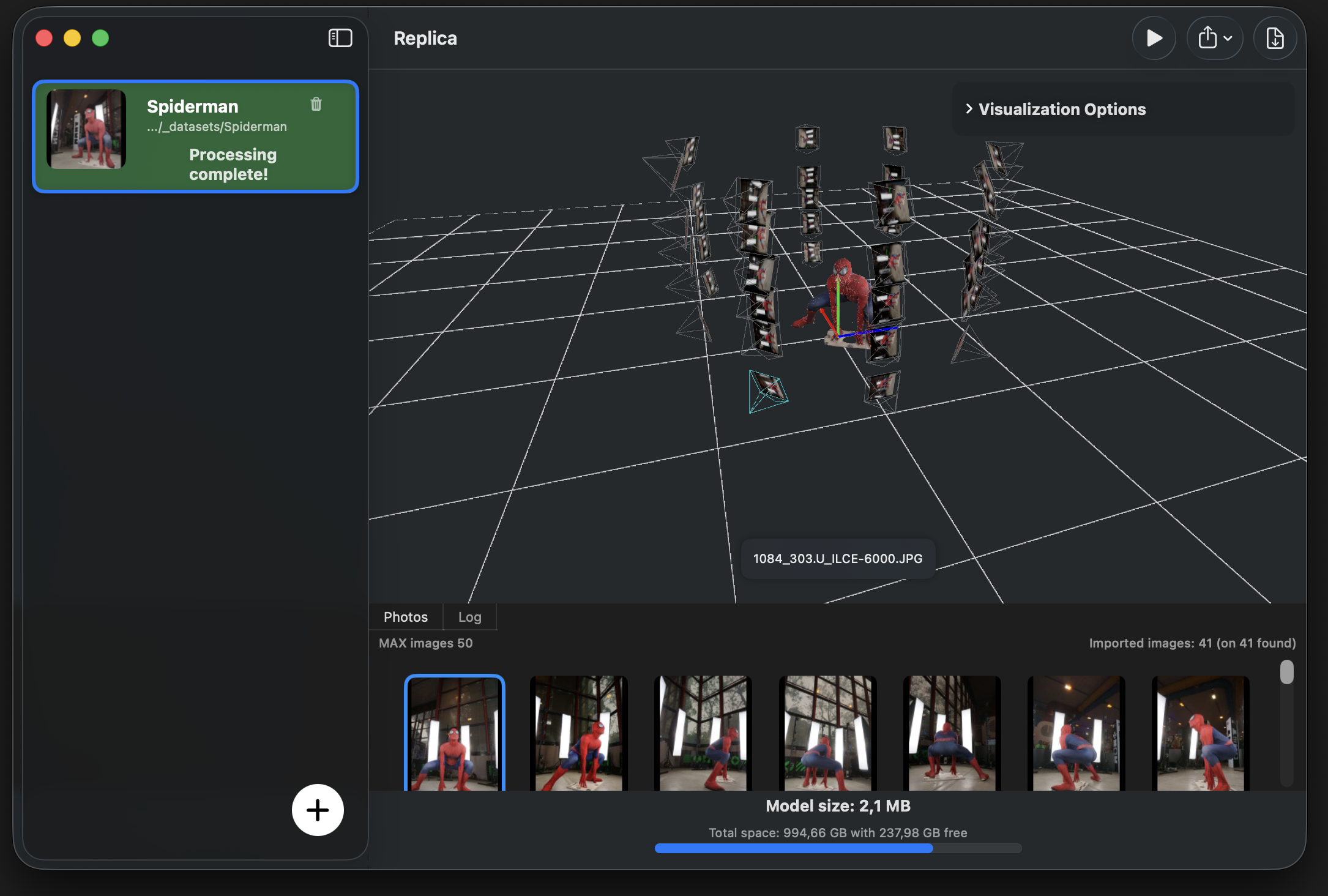
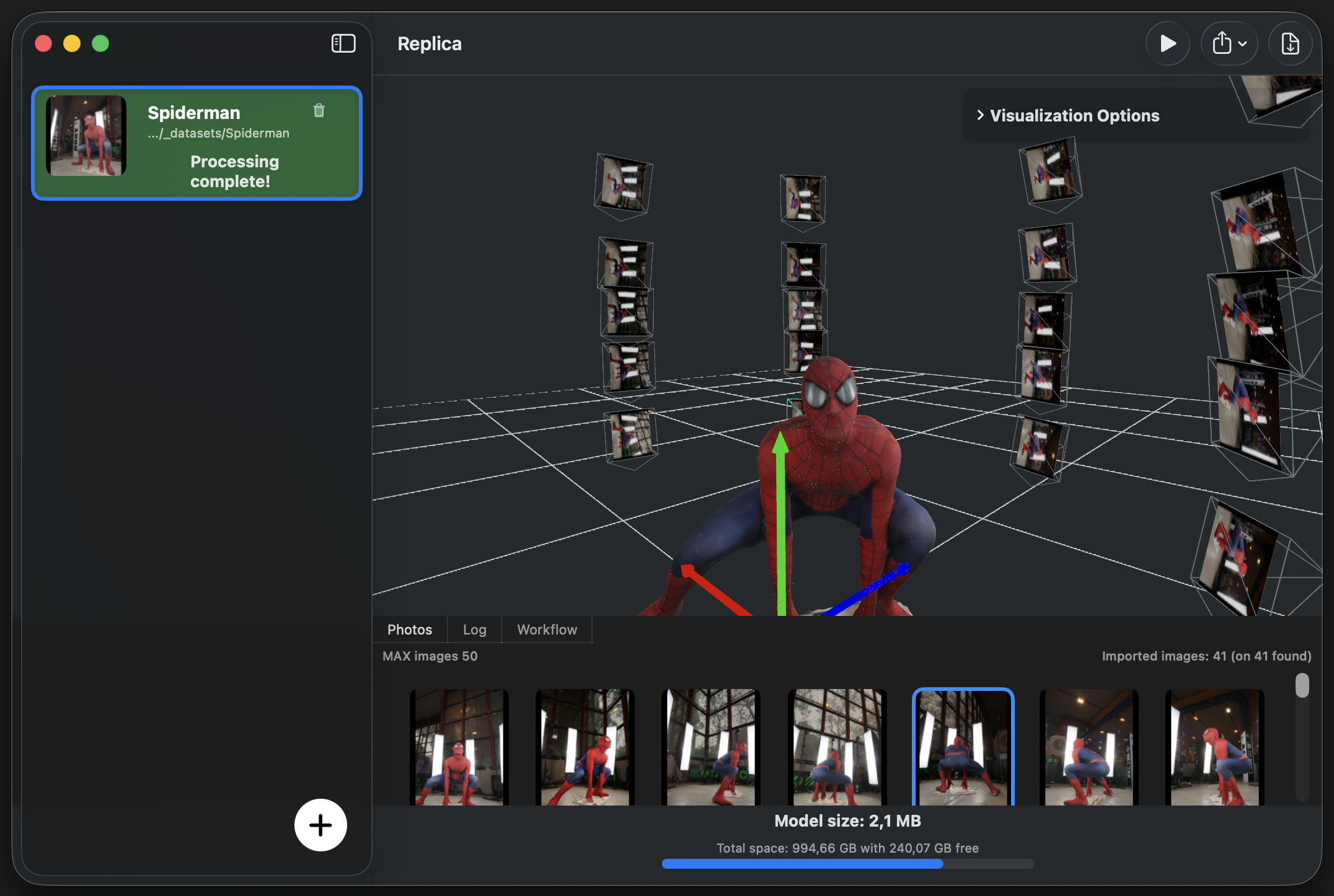
Once processing completes, your 3D model will appear in the Viewer tab.
Navigation Controls:
| Action | Control |
|---|---|
| Rotate | Left-click and drag |
| Pan | Shift + Left-click and drag |
| Zoom | Mouse wheel or trackpad pinch |
Additional Viewer Features:
-
Camera Position Alignment: Double-click on any camera icon to snap the view to that camera's position and rotation. This is useful for comparing your reconstruction with the original photos.
-
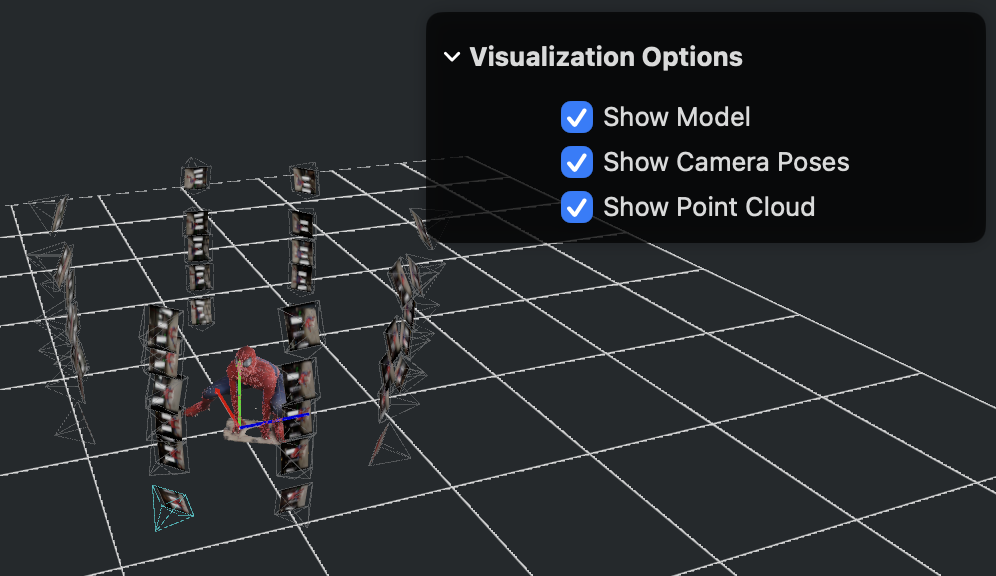
Visibility Controls: Toggle the visibility of different elements using the visualization options menu:
- Model - The final 3D mesh
- Point Cloud - The dense reconstruction
- Cameras - Photo capture positions
Exporting Your Model
Replica supports multiple export formats to fit your workflow.
Default Export (USDZ)
By default, your model is automatically exported as USDZ format in a subfolder next to your source images. USDZ files are:
- Native to Apple devices
- Viewable in AR Quick Look
- Compatible with Reality Composer
- No additional software required
Advanced Export Formats
To export in additional formats (OBJ, FBX, GLB), you need to install Blender.
Setting Up Blender Integration
Replica automatically searches for Blender in the default installation path. If Blender is not found automatically, you can configure it manually:
-
Open Settings
Access application settings from the top menu bar.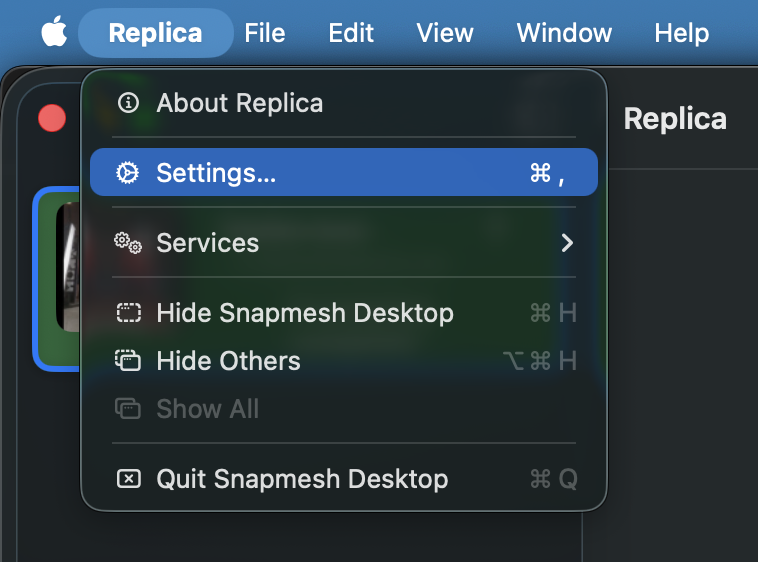
-
Configure Blender Path
Browse to and select your Blender executable location.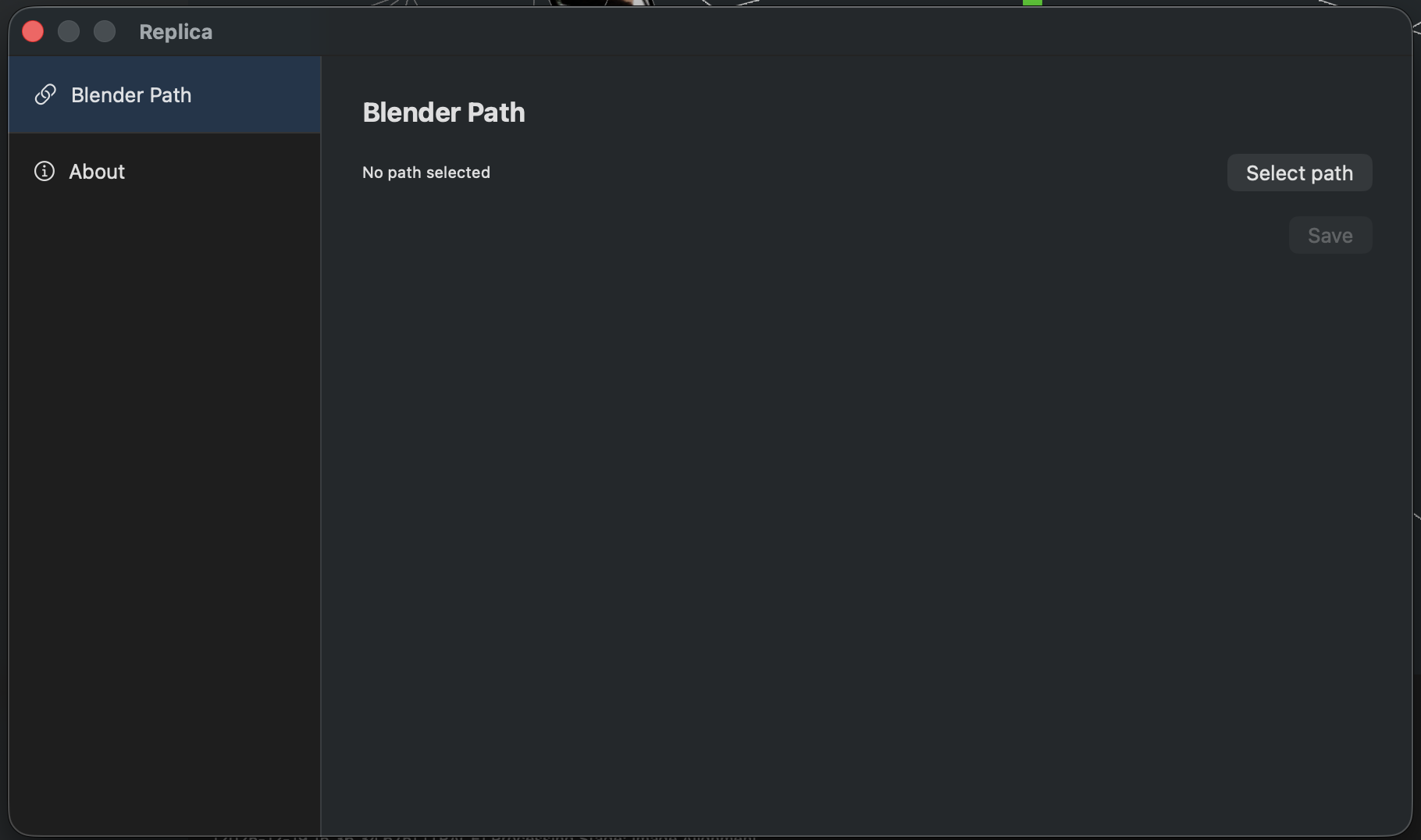
Once Blender is configured, you can export to all supported formats using the Export button:
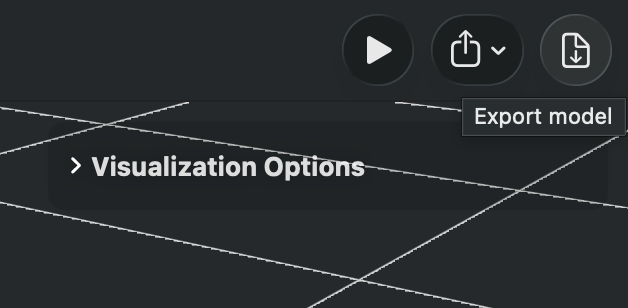
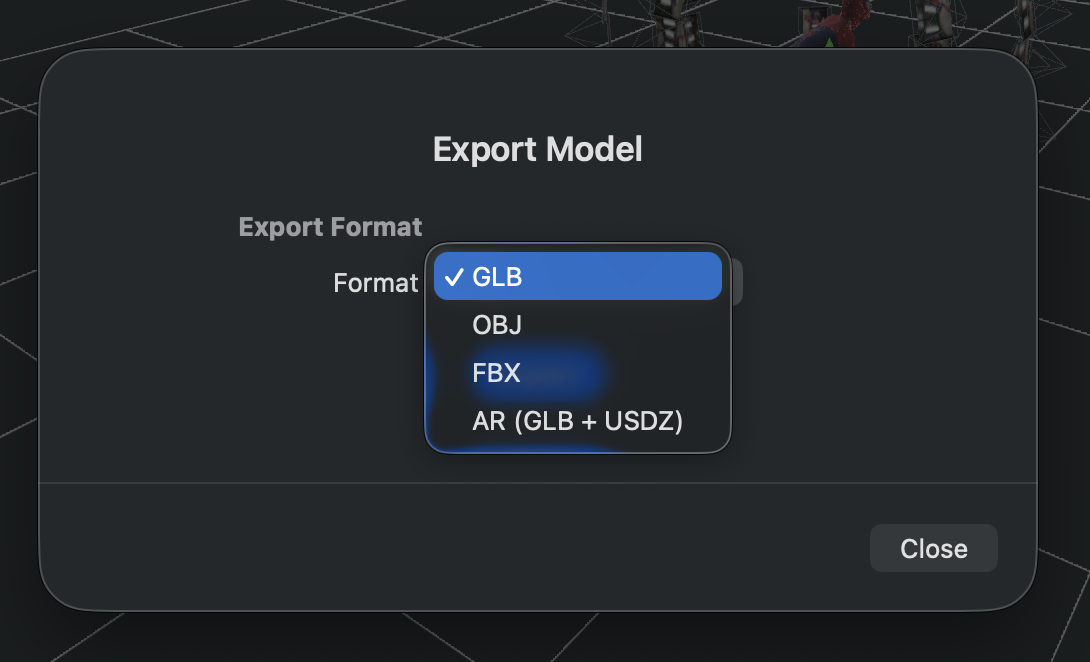
Export Format Guide:
- USDZ - Apple ecosystem, AR applications (default, no Blender needed)
- OBJ - Universal format, widely supported by 3D software
- FBX - Animation-ready, ideal for game engines (Unity, Unreal)
- GLB - Web-optimized, perfect for Three.js and web viewers
Troubleshooting
Problem: Processing takes too long
- Try using the "Quick" preset for faster preview
- Reduce the number of input images
- Close other memory-intensive applications
Problem: Model has holes or missing sections
- Ensure adequate photo coverage of all surfaces
- Check that photos have sufficient overlap (60-80%)
- Use consistent lighting to avoid shadows
- Consider re-shooting problematic areas
Problem: Export fails
- Verify Blender is properly installed and the path is correct
- Check that you have sufficient disk space
- Ensure write permissions for the destination folder
Problem: I cannot correctly display the textures of my OBJ file in Blender
- Open the Shader Editor and locate the Normal Map node.
- Change the calculation method in the dropdown menu from "Tangent Space" to "Object Space".
Next Steps
Now that you've created your first model, explore these additional features:
-
Session Configuration - Learn about all the parameters you can configure for your photogrammetry sessions, including quality presets, mesh settings, texture resolution, and hardware optimization options.
-
Workflows (Pro users only) - Discover how to create automated operation sequences that can be applied to your generated models before export. Workflows allow you to set up automatic transformations like rotation, scaling, offset adjustments, and more, streamlining your production pipeline.
-
Refine Operations (Pro users only) - Learn how to apply precise georeferencing transformations to your model using GPS metadata embedded in drone images. Automatically align, rotate, and scale your model to match real-world coordinates.
Need Help?
Visit the Replica community forums for support and tips from other users.
Happy scanning! 🚀