
Session configuration
Session settings control model detail, textures and the resources needed for reconstruction. Choose them for your photos and the model's intended use: higher quality takes more time and memory.
Accessing configuration settings
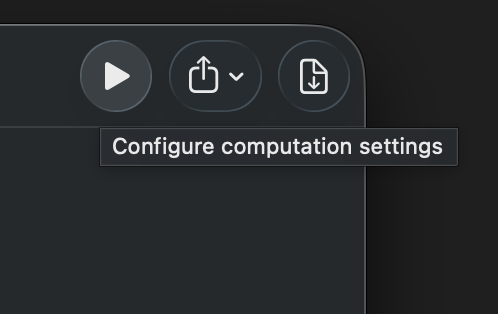
Select the project and click Play. In the panel that opens, adjust the settings before starting reconstruction.
Configuration presets
Free, Lite and Pro can use the built-in presets. Pro also lets you save and delete custom presets.
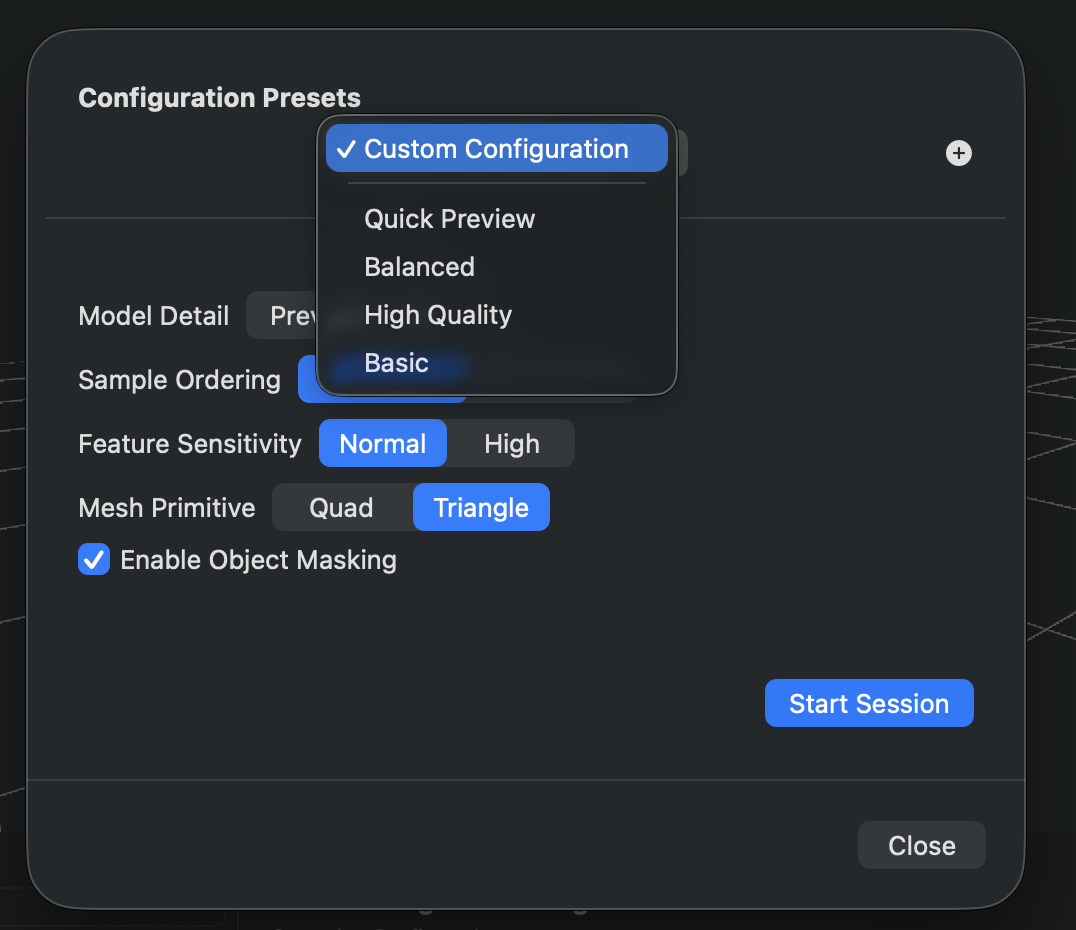
Built-in presets
Replica includes these three presets:
| Preset | Best For | Settings |
|---|---|---|
| Quick Preview | Fast preview to verify capture quality | Preview detail with standard settings |
| Balanced | General-purpose reconstruction | Medium detail with standard settings |
| High Quality | Production-ready models | Full detail, sequential ordering, high sensitivity, quad primitives, object masking enabled |
Managing your presets
To apply a preset:
- Select it from the "Configuration Presets" dropdown menu
To save a new preset:
- Configure your desired settings
- Click the
+button next to the preset selector - Enter a name for your preset
- Click Save
To delete a preset:
- Select the preset and click the trash icon
If you often work on similar subjects, save a preset for each project type, such as products or architectural details.
Input Loading
From v1.4.1, all editions can choose how images are loaded. Set Input Loading in the session panel before clicking Start Session.
| Mode | Behaviour | When to use it |
|---|---|---|
| Save Memory (default) | Streams decoded photos one at a time to Object Capture. | Large datasets, high-resolution frames or limited RAM. |
| Performance | Retains decoded photos for reuse during camera alignment and point-cloud generation. | Datasets whose decoded images comfortably fit in RAM. |
In Performance mode, Replica estimates the RAM needed for decoded images and warns if it exceeds half the Mac's physical memory. Reconstruction needs additional memory beyond that estimate. A JPEG that is small on disk can be much larger in RAM; an 8K dataset can cause swapping or make the session fail.
Replica saves the choice with the project and presets. Older projects and presets use Save Memory. Performance timings depend on the dataset and available RAM.
Model Detail
Model Detail controls reconstruction detail and how long it takes.
| Detail Level | Processing Speed | Quality | Best For |
|---|---|---|---|
| Preview | Fastest | Lowest | Quick verification of camera coverage and capture quality |
| Reduced | Fast | Low | Draft models, mobile app content, quick iterations |
| Medium | Moderate | Good | General-purpose models, web applications |
| Full | Slow | High | Production models, detailed visualization |
| Raw | Slowest | Highest | Maximum detail preservation, research projects |
| Custom | Varies | User-defined | Advanced users with specific technical requirements |
When to use each level
Preview & Reduced:
- Testing your photo set before committing to a long reconstruction
- Creating lightweight models for mobile devices or web viewers
- When time is more critical than quality
Medium:
- Most 3D models for general use
- When you need a balance between quality and processing time
- Models that will be viewed on desktop applications
Full & Raw:
- Final production assets
- Models requiring maximum detail capture
- When quality is the top priority and you have time to wait
- Creating models for close-up viewing or high-resolution rendering
Custom:
- When you have specific polygon count or texture requirements
- Advanced workflows with particular technical constraints
- Fine-tuning for optimal file size vs. quality trade-offs
Custom Detail specification
Choose Custom to set the polygon limit and textures directly.
Maximum polygon count
Define the upper limit for mesh complexity.
- Default: 250,000 polygons
- Type: Numeric value
- Impact: Higher values create more detailed geometry but increase file size and processing time
A model with 100,000 polygons is suitable for most real-time applications, while 500,000+ polygons might be needed for high-detail visualization or animation projects.
Maximum texture dimension
Controls the resolution of texture maps applied to your model.
| Resolution | Size | Recommended For |
|---|---|---|
| 1K | 1024 × 1024 | Mobile devices, low-detail objects |
| 2K | 2048 × 2048 | Web applications, standard quality |
| 4K | 4096 × 4096 | Desktop applications, good detail |
| 8K | 8192 × 8192 | High-quality production work (default) |
| 16K | 16384 × 16384 | Ultra-high-resolution requirements, large objects |
Texture resolution should match your intended viewing distance. Objects viewed from far away don't need 16K textures, while objects meant for close inspection benefit from higher resolutions.
Texture format
Choose between lossless and compressed texture output.
PNG (Lossless)
- No compression artifacts
- Maximum quality
- Larger file sizes
- Best for: Production work, archival purposes, further processing
JPEG (Lossy)
- Adjustable compression quality (0.0 to 1.0)
- Smaller file sizes
- Quality vs. size trade-off
- Best for: Web delivery, when file size matters
JPEG Compression Quality Scale:
0.0= Maximum compression (smallest files, lowest quality)0.5= Moderate compression (balanced)0.8-0.9= Light compression (great quality, reasonable size) (recommended)1.0= Minimum compression (highest quality, larger files)
Output texture maps
Choose the texture maps you will use in the destination application.
| Texture Map | Purpose | When to Use |
|---|---|---|
| Ambient Occlusion | Simulates soft shadows in crevices and corners | Adds depth and realism to models |
| Diffuse Color | Base color information of the surface | Always needed for standard visualization |
| Displacement | Height map encoding fine surface detail | Creating geometric detail without extra polygons |
| Normal | Surface normal directions for lighting | Simulating detailed lighting on surfaces |
| Roughness | Surface roughness/glossiness properties | Controlling material reflectivity and appearance |
Quick Selection Options:
- All: Generates all five texture map types (default for maximum flexibility)
- Custom: Toggle individual maps based on your specific needs
Save processing time: If you only need basic visualization, select just Diffuse Color and Normal maps. The other maps are primarily useful for advanced rendering in 3D applications.
Sample Ordering
Sample Ordering tells Replica whether the images follow a capture sequence or come from unrelated positions.
| Option | How It Works | Best For |
|---|---|---|
| Unordered | Images processed without considering sequence | Photos taken from random positions around an object |
| Sequential | Images processed in the order they appear | Video frames, systematic photo sequences with planned camera paths |
When to use Sequential:
- Your images come from a video file
- You captured photos in a systematic pattern (e.g., walking around an object)
- Images are named in chronological order
When to use Unordered:
- Photos were taken from various random angles
- You mixed different shooting sessions
- Image order doesn't reflect spatial relationships
When unsure, choose Unordered. Use Sequential when image order follows the camera path, as it does for video frames.
Feature Sensitivity
Feature Sensitivity controls how Replica searches for details to recognise and match between images.
| Setting | Behavior | Processing Time | Best For |
|---|---|---|---|
| Normal | Standard feature detection | Faster | Most scenarios, objects with clear textures and features |
| High | Enhanced feature detection | Slower | Complex surfaces, fine details, subtle textures, challenging materials |
Use High sensitivity for:
- Objects with low contrast or subtle textures
- Reflective or transparent surfaces
- Fine geometric details you want to capture
- When Normal sensitivity produces incomplete results
Use Normal sensitivity for:
- Objects with good texture and clear features
- When processing speed is important
- Most typical photogrammetry subjects
Mesh Primitive
Mesh Primitive chooses between triangles and quads. Use the type suited to the application where you will open the mesh.
| Primitive | Description | Best For |
|---|---|---|
| Triangle | Standard 3-sided polygons | Game engines (Unity, Unreal), real-time rendering, maximum compatibility |
| Quad | 4-sided polygons | CAD software, subdivision modeling, animation, further refinement in 3D apps |
Choose Triangle if:
- Your model is destined for a game engine
- You need maximum compatibility across software
- The model will be used for real-time visualization
- You're exporting to web-based 3D viewers
Choose Quad if:
- You plan to edit or refine the mesh in Blender, Maya, or similar tools
- The model will be subdivided for higher detail
- You're creating assets for animation workflows
- The topology quality matters for further processing
Most modern 3D software can handle both types, but triangles are more universally supported. When in doubt, choose Triangle.
Object Masking
Object Masking tries to separate the subject from the background during reconstruction, reducing unwanted elements and improving edges.
- Enabled: The reconstruction focuses on the primary subject, removing background elements
- Disabled: The entire scene is reconstructed, including background
Benefits of enabling Object Masking:
- Cleaner reconstruction with less background noise
- Better edge definition around your subject
- Reduced processing of irrelevant areas
- More accurate mesh boundaries
When to use Object Masking:
- Your subject is clearly distinct from the background
- You want to isolate a specific object
- Background contains distracting elements
- You're creating product models or isolated assets
When to disable Object Masking:
- You want to capture the entire environment
- The subject and background are equally important
- Creating architectural or landscape models
Object Masking works best when there's good contrast between your subject and background. A clean, simple background (like a turntable) produces the best results.
Practical configuration examples
These settings are starting points for common uses. Adjust them to suit your photos.
Product photography
Goal: Clean, high-quality model suitable for e-commerce or AR viewing
- Model Detail: Full
- Sample Ordering: Sequential (if shot on turntable)
- Feature Sensitivity: Normal
- Mesh Primitive: Triangle
- Object Masking: Enabled
- Texture: 4K JPEG (quality 0.9) or 8K PNG
Architectural element
Goal: Detailed model for visualization in architectural software
- Model Detail: Full or Raw
- Sample Ordering: Unordered
- Feature Sensitivity: High
- Mesh Primitive: Quad
- Object Masking: Disabled
- Texture: 8K PNG with all texture maps
Web/mobile 3D viewer
Goal: Optimized model for web delivery with fast loading
- Model Detail: Custom
- Polygon Count: 50,000 - 100,000
- Texture Dimension: 2K or 4K
- Format: JPEG (quality 0.8)
- Maps: Diffuse Color + Normal only
- Sample Ordering: Unordered
- Feature Sensitivity: Normal
- Mesh Primitive: Triangle
- Object Masking: Enabled
Quick Preview test
Goal: Fast verification of photo coverage before final reconstruction
- Model Detail: Preview or Reduced
- Sample Ordering: Unordered
- Feature Sensitivity: Normal
- Mesh Primitive: Triangle
- Object Masking: Disabled
Storage requirements
Before starting a session, Replica automatically checks your available disk space. Higher quality settings require more storage during processing.
Approximate Storage Needs:
- Preview: < 1 GB
- Reduced: 1-3 GB
- Medium: 3-8 GB
- Full: 8-20 GB
- Raw: 20+ GB
- Custom: Varies based on polygon count and texture settings
The app will alert you if there isn't enough space available before processing begins.
Keep at least 20% of your disk free beyond the estimated requirement. Processing generates temporary files that need additional space.
Tips for best results
Start with a quick preview:
- Always run a Preview or Reduced quality reconstruction first
- Verify your photos have good coverage
- Check for any issues before committing to a long Full or Raw reconstruction
Match settings to your output:
- Don't use 16K textures if you're exporting for web viewing at 1080p
- Choose polygon counts appropriate for your target platform
- Consider your final delivery format when selecting texture formats
Experiment with presets:
- Pro users should create presets for their common workflows
- Reuse the same settings without entering them again
- You can always fine-tune settings after applying a preset
Monitor processing time:
- Higher quality can take much longer
- Plan accordingly if you have deadlines
- Consider running overnight for Raw or high-polygon Custom reconstructions
Next steps
Other guides in the manual:
-
Getting Started - Learn the basics of creating your first photogrammetry project
-
Workflows (Pro): automate post-processing steps.
-
Refine Operations (Pro users only) - Align and scale using GPS metadata, manual measurements or AprilTag bars
Need help?
For help choosing settings, ask in the Replica community and describe your dataset and configuration.
Include the session log when asking about a processing problem.