
Replica Link: Your Mac Is Now a Photogrammetry Server
Photogrammetry workflows have a friction point that nobody talks about: the device you shoot with is never the device you process on. You capture photos on your phone in the field, then you have to transfer them to your workstation, organize them into a project, configure the session, and start the computation. By the time you're looking at a 3D model, the shoot feels like it happened hours ago.
Replica Link removes that gap. It turns your Mac into a local photogrammetry server that any device on your network can access — phone, tablet, laptop, even a Windows PC. Upload photos, launch reconstructions, and preview 3D models from a browser. No file transfers. No cloud. No apps to install on the other device.
Replica Link is available exclusively in Replica Pro and is currently in public beta.
How It Works
The idea is simple: your Mac does the heavy lifting, and everything else is a remote control.
- Start the server — open Replica Pro, click the Link button (antenna icon), and hit Start Link Server
- Connect any device — scan the QR code with your phone, or type the local address in any browser
- Upload and process — shoot photos, upload them directly from the browser, pick a quality level, and tap Start
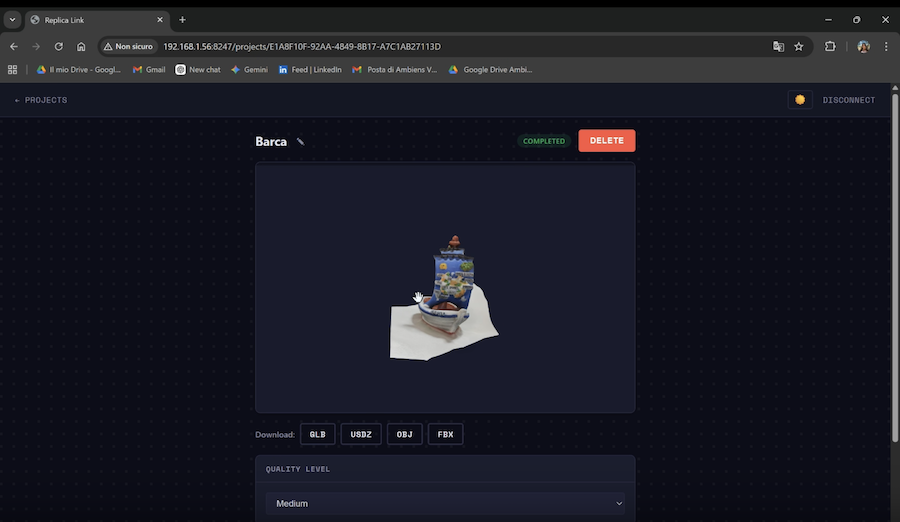
- View the result — the 3D model appears in an interactive viewer right in the browser. Rotate, zoom, download in GLB, USDZ, OBJ, FBX, or STL
That's it. The phone never needs more than a browser and a Wi-Fi connection.
Why Local?
We deliberately kept Replica Link local-network only. No cloud relay, no account creation, no data leaving your premises.
This matters for several reasons. If you're scanning on a construction site, in a museum, or in a studio, your data stays where you are. There's no upload latency to a remote server — images transfer at LAN speed, which is effectively instant for most photo sets. And there's no recurring cost: Replica Link is included in Replica Pro, not a separate subscription.
The trade-off is that both devices need to be on the same network. For most real-world scenarios — studio work, on-site scanning, office collaboration — that's already the case.
Real Scenarios
On-site scanning with a team. One person walks around the object with a phone. Someone else monitors the upload and starts the computation from a tablet. The Mac sits in a bag or on a desk, doing the processing. When the model is ready, everyone can view it from their own device.
Studio workflow. You're shooting products on a turntable. Between sets, you upload each batch from your phone without walking to the Mac. By the time you finish the last set, the first model is already done and waiting in the browser.
Cross-platform access. Your Mac handles the photogrammetry, but the rest of your team uses Windows or Linux. Replica Link doesn't care — it's a web interface. Anyone on the network can view and download models.
Quick field preview. You're on location and want to know if the capture is good enough before packing up. Upload the photos from your phone, run a Preview-quality computation (fast), and check the mesh on the spot. If something's missing, you reshoot while you're still there.
The Web Interface
The browser interface is designed to be functional and fast, especially on mobile.
The projects list shows all projects loaded in Replica, with status badges (ready, processing, completed, failed) and progress indicators for active computations.
Creating a new project is straightforward: tap New Project, name it, select photos from your device (or drag and drop), and upload. Once uploaded, you configure the quality level — from Preview (fastest) to Raw (maximum detail) — and start the computation.
When the model is ready, an interactive 3D viewer appears at the top of the project page. You can rotate, zoom, and inspect the model using touch gestures or mouse controls. Below the viewer, a download bar lets you grab the model in five formats: GLB, USDZ, OBJ, FBX, or STL.
On supported devices, there's an AR button that opens the model in augmented reality — place the scanned object in your real environment directly from the browser.
Security
Replica Link is PIN-protected. A random 6-digit PIN is generated each time the server starts, and you need it to connect from any device. Sessions expire after 24 hours. You can regenerate the PIN at any time to immediately disconnect all active sessions.
No data leaves your network. No external services are contacted. Everything runs between your Mac and the connected devices.
For Developers: There's an API
If you want to automate the workflow or build integrations, Replica Link exposes a full REST API. Authenticate with the PIN, upload images, start computations, poll status, and download models — all via standard HTTP calls.
A quick example:
# Authenticate
TOKEN=$(curl -s -X POST http://192.168.1.10:8247/api/auth \
  -H "Content-Type: application/json" \
  -d '{"pin":"482193"}' | jq -r '.token')

# Upload a project
curl -s -X POST http://192.168.1.10:8247/api/projects \
  -H "Authorization: Bearer $TOKEN" \
  -F "name=FieldScan" \
  -F "images=@photo1.jpg" \
  -F "images=@photo2.jpg"

# Start computation
curl -s -X POST http://192.168.1.10:8247/api/projects/<id>/compute \
  -H "Authorization: Bearer $TOKEN" \
  -H "Content-Type: application/json" \
  -d '{"detail":"medium"}'
The full API reference is in the Replica Link API documentation.
This opens up workflows like automated scanning stations, batch processing pipelines, or integration with custom tools and dashboards.
Getting Started
- Make sure you have Replica Pro
- Open Replica, click the Link button, start the server
- Scan the QR code from your phone
- Upload photos and start scanning
For the full setup guide and troubleshooting, see the Replica Link manual.